

Full Text Search
Full-text (BM25) search is the default retrieval path. Configuration boils down to three questions: which fields are indexed, how they rank, and what counts as "the same" word.
1. Pick the searchable fields
- Settings → Search → Full Text Search.
- + Add more — pick
(node type, field)pairs. - Toggle Searchable on the node type to control whether matches surface in the default workspace search results.
Recommended fields per type:
| Type | Typical fields | Notes |
|---|---|---|
SupportCase |
Summary, Content |
Boost Summary higher; Content is longer-tailed. |
KbArticle |
Title, Body, Tags |
Title and Tags should outweigh Body. |
Product |
Name, Description, Sku |
Sku boosted heavily — exact matches are intent signals. |
Avoid indexing high-cardinality opaque fields (UUIDs, hashes) — they bloat the index without helping recall.
On the Technical support sample workspace, Case.Subject and Case.Description are the searchable fields:
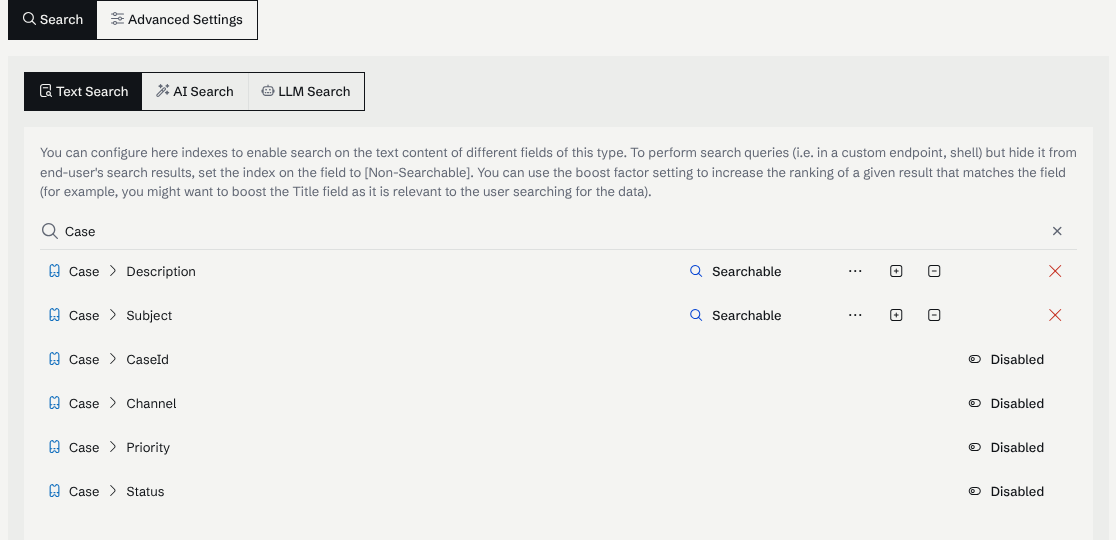
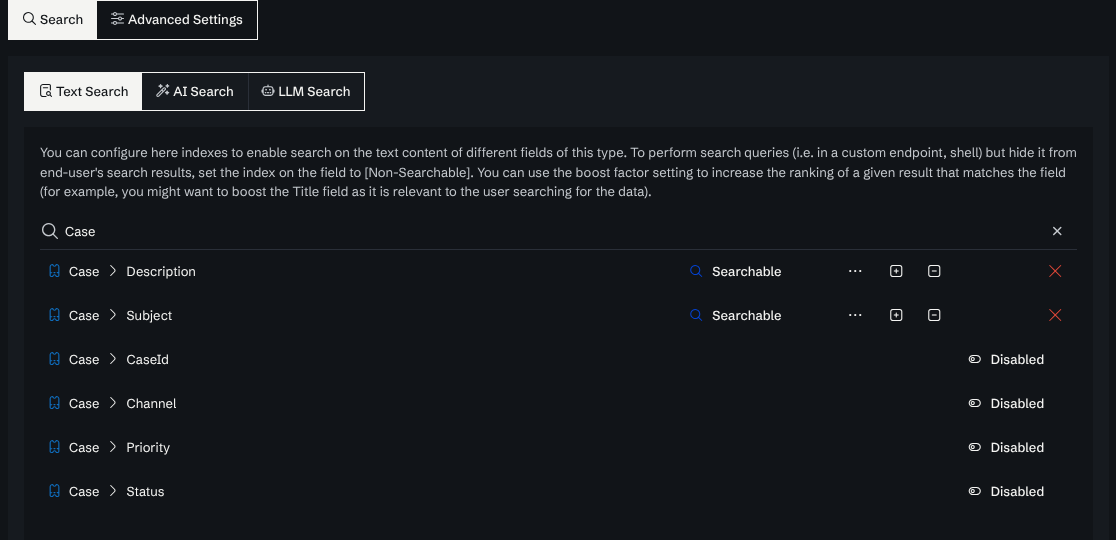
Each indexed field has its own settings, reachable from the index's advanced settings and each explained by its (?) tooltip. The ones that change what matches:
| Setting | What it does |
|---|---|
| Searchable | Off leaves the field out of users' searches; field-scoped queries from custom code still reach it. |
| Index Aliases | On (the default) also indexes the node's aliases whose language matches this index, so a node is found by its other names. Off restricts matching to the field's own text. |
| Index Lemma | Also indexes each word's base form, so running matches run. Costs roughly one extra term per word. |
| Index Stop Words | Keeps the, and, … in the index. Grows it, but lets a query made only of stop words match. |
| Fuzziness | How many letter edits are tolerated: 0 exact only, 1 or 2 a fixed edit distance, -1 automatic by word length. |
| Normalize Diacritics / Ignore Case | Match Muller against Müller, and match case-insensitively. Both only fully apply after a reindex. |
2. Adjust ranking with field boosts
Each indexed field has a boost value (the + / − controls). Matches in higher-boost fields score higher. Useful defaults:
- Title-like fields: 3–5×
- Summary fields: 2×
- Body fields: 1× (baseline)
- Tags / labels: 2–3×
Adjust iteratively against the evaluation framework — don't tune by gut.
3. Synonyms
Domain abbreviations and internal jargon hurt recall when they aren't declared. Add them under Settings → Search → Synonyms, one entry per term, sorting the related words into Synonyms, Alternates or Blocked.
Two things to keep in mind: an entry is one-directional unless you turn on its link toggle (mbp → MacBook Pro does not imply the reverse), and synonyms apply when a query runs, so a change needs no re-index.
See Synonyms for the editor, the language scoping, and the API.
Multi-language behavior
Each indexed field is tied to its node's language detection (via the NLP pipeline). The search engine stems, lower-cases, and removes stop-words per-language. For mixed-language corpora, no extra setup is needed — each document is processed with its detected language.
From code
The same configuration drives SearchRequest from custom endpoints:
var req = SearchRequest.For("battery drain");
req.BeforeTypesFacet = new HashSet<string> { N.SupportCase.Type };

// Optional: limit to a subset of indexed fields for this query.
req.RestrictedFields = new[] { "Summary" };

var query = await Graph.CreateSearchAsUserAsync(req, CurrentUser, CancellationToken);
return query.Take(20).Emit();
Setting RestrictedFields on a request narrows ranking to a slice of the configured index — useful when you want a "title-only" search lane from the same index.
Validating changes
After changing field boosts or synonyms:
- Run the evaluation framework eval set. Look for regressions in recall@k and MRR.
- Spot-check a handful of representative queries from production logs.
- If you've added a new indexed field, rebuild the index: Settings → Search Index → Rebuild. A synonym change needs no rebuild.
Cross-links
- Ranking and boosting
- AI search — for the embedding lane.
- Synonyms — domain vocabulary and query-time expansion.
- Relevance tuning — the iterative playbook.
- Search execution scopes — for custom index code.