

OCR & File Extraction
Curiosity Studio runs a built-in extractor over every file that lands in the workspace. It reads text from documents directly, recognizes text in scans and images with optical character recognition (OCR), and transcribes audio and video. The search, embedding and NLP indexes then read the extracted text like any other field, and AI assistants read the same content as Markdown.
This page covers what runs, when, and which engine reads which kind of page. For supported formats and limits see Multimodal Search. To read a file's content from your own C#, see Extracting files to Markdown.
What the extractor does
The extractor picks a reader by file type:
| File class | Reader | Output |
|---|---|---|
| PDFs with a text layer, Office documents, e-books, HTML, text, code, CSV, JSON, XML | Direct parsing, no OCR | Text and Markdown, per page where the format has pages |
| Scanned PDFs (no text layer, or an unreadable one) | OCR, page by page | Text and Markdown per page |
| Images (PNG, JPEG, GIF, BMP, WebP, TIFF, HEIC, HEIF, DNG, RAW) | OCR | Text and Markdown |
| Audio and video | Speech to text (Whisper) | Timestamped transcript |
| Archives (zip, tar, …) | Recursive extraction | One result per inner file |
You don't pick the reader. A PDF with no text layer, or with a text layer made of unreadable characters (a broken font encoding), goes to OCR. Text in a PDF's text layer is read as it is, whatever its script, so OCR language support only matters for scans and images.
How OCR reads a page
Every scanned page and image is read first by NanoOCR, an OCR engine whose models are built into Studio. It needs no download and runs on every platform. NanoOCR also classifies the page, and the page goes to the engine that reads that kind of page best:
| Page type | Read by |
|---|---|
| Printed text | NanoOCR |
| Photo (text in a scene, a photographed receipt) | Florence2 |
| Table or form | PaddleOCR-VL |
| Handwriting | PaddleOCR-VL |
| Mixed, or a page NanoOCR read with low confidence (a degraded scan, an unusual script) | PaddleOCR-VL |
Florence2 and PaddleOCR-VL are optional downloads (see Installing the OCR models). NanoOCR's reading is always the fallback. Until a model is installed, or when an engine fails or finds no text on a page, the page keeps NanoOCR's reading. A page is never left unread because a model is missing.
The Curiosity desktop app reads every page with NanoOCR alone.
All three engines run on the workspace's own machine. Studio does not send pages to an external OCR service, and has no settings for one. Configuration keys for the Azure, AWS Textract, Aspose.OCR, PaddleOCR service, Windows OCR and macOS LiveText engines that earlier versions read are ignored.
OCR also keeps where each line sits on the page. The searchable PDF preview of a scan uses those positions to draw the recognized text over the page image.
Handwriting
PaddleOCR-VL reads handwritten pages once it is installed. Without it, a handwritten page keeps NanoOCR's reading, and NanoOCR is trained on printed text, so expect little usable text from handwriting until PaddleOCR-VL is downloaded.
Languages
There are no OCR language packs to install and no per-workspace OCR language setting. What each engine reads:
- NanoOCR reads printed Latin-script languages (about 50), Cyrillic, Greek, Devanagari, Bengali, and Chinese (simplified and traditional). It is a port of the Indra OCR models, and that is the list the Indra project publishes for the model set NanoOCR embeds. Other scripts, including Japanese kana, Korean Hangul, Arabic, Hebrew and Thai, are not in that list.
- PaddleOCR-VL supports 109 languages according to its model card, including Chinese, English, Japanese, Korean, Russian, Arabic, Hindi and Thai. A page NanoOCR reads with low confidence goes to PaddleOCR-VL once it is installed. If your scans use a script outside NanoOCR's list, check a sample after the download.
When extraction runs
Extraction runs once, when the file is first indexed. The result is stored in the graph, so re-indexing (because metadata changed, a new index was added, or the workspace was reindexed) does not run OCR again on documents already processed.
Downloading the OCR models does not re-read files the workspace has already extracted: a scan read by NanoOCR alone keeps that reading. To read such files again, queue them for re-extraction, for example from a migration (see Migration examples).
Turning OCR on
OCR is on by default. The switch is Image to Text on Manage → Data → File Indexing → AI Processing, beside Image Captioning and the download row for the models both use:
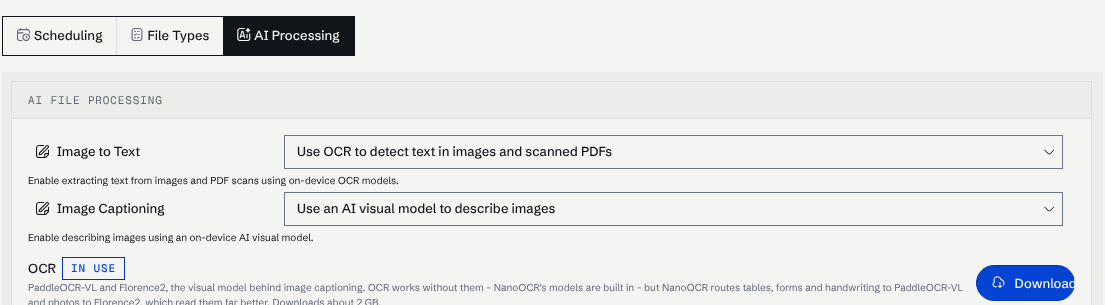
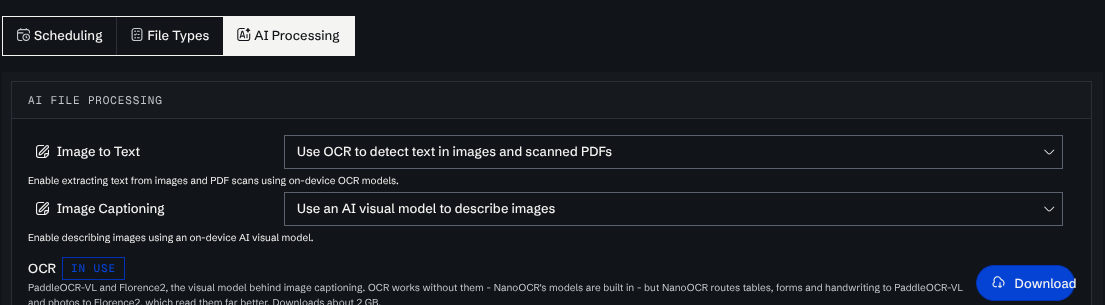
Switching OCR on queues every image, and every PDF that has no extracted text, for extraction again. On a server it also starts the download of the Florence2 and PaddleOCR-VL models.
Image Captioning uses Florence2 to write a short caption and a longer description for each image. It needs the Florence2 model from the same download.
Installing the OCR models
Florence2 and PaddleOCR-VL are one download, a few gigabytes together; the download row shows its approximate size. Download them from either place:
- Manage → AI → Models, under Extraction Models, which lists every model the workspace runs locally, embedding and speech-to-text models included.
- Manage → Data → File Indexing → AI Processing, in the OCR row under the switches.
Each row says whether the model is installed and in use, and has a Download button. The download runs on the server and shows its log while it runs. Closing the log does not stop the download, and opening it again, or starting the same download from the other page, shows the run already in progress.
Limits
- PaddleOCR-VL is slow. A dense page takes a minute or two on a few CPU cores, and one page is given at most five minutes.
- Long scanned PDFs wait. A scanned PDF with more than 100 pages goes back to the queue at the lowest priority, so shorter files are extracted first. Once PaddleOCR-VL is installed the threshold is 20 pages.
- Animated GIFs are read by their first frame.
Text and Markdown
Every extraction produces two forms of the same content, paged the same way, so a page number means the same page in both:
- Text, which the search, embedding and NLP indexes read.
- Markdown, with headings, lists and tables kept, which is what an AI assistant should read.
OCR writes Markdown too. NanoOCR and PaddleOCR-VL lay out headings, paragraphs and tables from the page layout. Florence2 reads regions rather than a document, so its Markdown is the recognized lines in reading order.
The Markdown is stored only when it says more than the text. A .txt file, a source file or a recognized page of plain prose stores none, and a reader falls back to the text. A spreadsheet, a slide deck or a document with headings and tables stores its Markdown. It is kept on the file's pages in the graph and is not indexed.
To read it from C#, use ChatAI.GetMarkdownFromNode(fileUID), which returns the stored Markdown and falls back to the text. See Extracting files to Markdown for the other readers.
Pictures inside documents
OCR of scans and images does not read the pictures inside a document whose text extracts normally. A screenshot on a slide or a scanned table pasted into a Word file is read by a separate pass:
- Workspace-wide, through the file content index's
OcrPdfImagessetting. It is off by default. - For one file, with
ChatAI.GetFileAsMarkdownAsync(fileUID, withOCR: true).
This pass uses PaddleOCR-VL and does nothing until that model is installed. It reads the pictures in Word, PowerPoint, Excel and OpenDocument files, up to 16 pictures per document and two minutes per picture. Each picture's text is placed where the picture was. Pictures embedded in PDFs are not read.
Page renders for multimodal models
When the model needs to see the page as an image (diagrams, scanned forms, slides with visual layout), call ChatAI.RenderFilePageAsImageAsync(fileUID, pageIndex) (single page) or ChatAI.RenderFilePageAsImageAsync(fileUID, startPageIndex, endPageIndex) (inclusive range). Each rendered page is stored as a JPEG blob with a deterministic UID derived from the file UID and the 0-based page index, and the dictionary returned maps page index to blob UID. See Rendering file pages as images.
Where the text shows up
Once extracted, the text behaves like any other field on the file node:
- Search. Full-text search and ranking treat it as the file's body.
- Vector / semantic search. Embedding indexes run over the extract and feed similarity, "find related", and RAG retrieval.
- NLP. Entity extraction, key-phrases, sentiment, classifiers: all run over the extract by default.
- Chat assistant. The built-in tools that read a file for the model read its Markdown where there is any, and its text otherwise, with page numbers where the format has pages.
- Highlights and deep links. Search hits surface the OCR span or transcript segment that matched, and the viewer jumps to the right page or timestamp.
Related pages
- Multimodal Search: supported formats, OCR limits, and speech-to-text details.
- Extracting files to Markdown: reading the stored Markdown and running the extractor from C#.
- Rendering file pages as images: rendering pages of PDFs, Office files and images as JPEGs for multimodal models.
- Internationalization: language support across the workspace.
- Reindexing and re-embedding: rebuilding indexes after configuration changes.