
Access Control Model: Deep Dive
This page provides a technical deep dive into the access control model of Curiosity Studio. It is intended for developers building connectors, custom endpoints, or understanding the security implications of the graph model.
Overview: Relationship-Based Access Control (ReBAC)
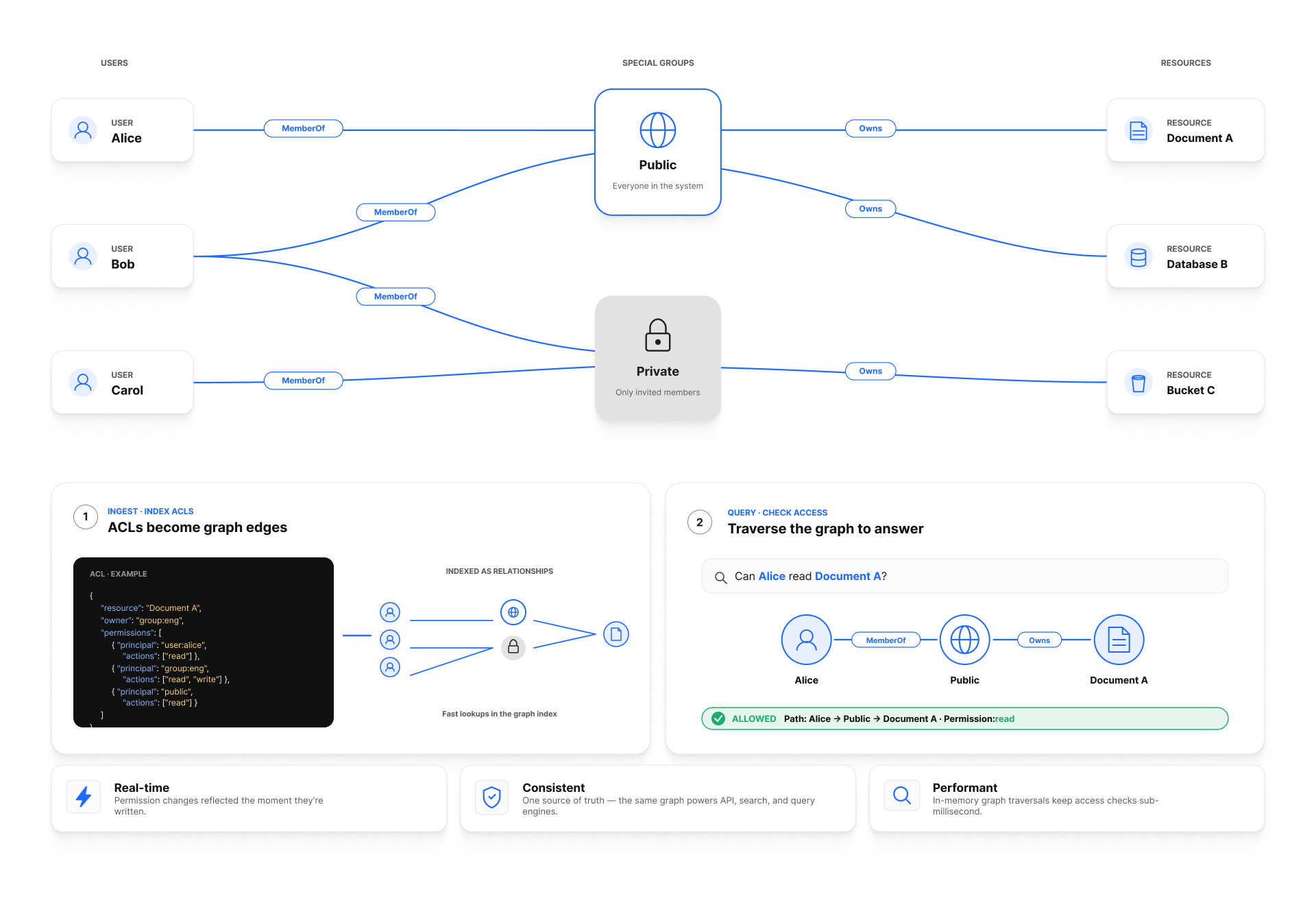
Curiosity Studio employs a Relationship-Based Access Control (ReBAC) model. Unlike traditional Role-Based Access Control (RBAC) where permissions are assigned to roles and roles to users, ReBAC determines access based on the relationships between subjects (users) and objects (resources) in the graph.
As discussed in this Auth0 blog post on ReBAC, ReBAC is powerful because it allows for fine-grained, dynamic permissions that scale with your data model. Access is not a static list; it is a question answered by traversing the graph: "Is there a path from User U to Resource R via ownership or membership edges?"

The Graph Model
The access control model relies on specific node types and edge types within the graph.
Nodes
_User: Represents a user in the system._AccessGroup: Represents a group of users (often displayed as a Team in the UI).- Resources: Any node (File, Folder, entity, etc.) can be a resource protected by this model.
Edges
Ownership: Defines who owns a resource.
_OwnedBy: Points from Resource to Owner (User or AccessGroup). This is the edge the access-control engine actually reads — every permission check (API, query engine, search) walks_OwnedByoutward from the resource._Owns: Points from Owner to Resource — the reverse of_OwnedBy. It is never consulted by a permission check. It exists purely so the graph can be walked the other way, from an owner to everything it owns — see Do you need the_Ownsback-edge? below.- Note:
Curiosity.Library's helper methods (RestrictAccessToTeam,RestrictAccessToUser,AddOwners) maintain both edges as a pair by default — you don't add either one by hand.
Membership: Defines who belongs to a group.
_MemberOf: Points from User to AccessGroup._HasMember: Points from AccessGroup to User.
Propagation Logic
Access is granted if a valid path exists between the resource and the user. The engine checks this by walking _OwnedBy edges outward from the resource — _Owns is never part of the check, since the engine only ever needs to answer "who owns this resource?", not "what does this owner have?".
- Direct Ownership:
Resource -[_OwnedBy]-> User - Group Ownership:
Resource -[_OwnedBy]-> AccessGroup, and the user's own_MemberOfedge to that sameAccessGroupgrants access. - Resource-to-resource ownership: A resource can itself be
_OwnedByanother resource (e.g. an email attachment owned by the parent email), which is in turn owned by a user or group — the engine follows this chain a couple of levels deep.
In essence, if you are a member of a team, you inherit the access rights (ownerships) of that team.
Special Access Groups
The system reserves two built-in access groups for special access scenarios. Connector code never references these groups directly — Curiosity.Library exposes dedicated wrappers (see Making Content Private below) that maintain the ownership edges for you.
Public Access Group
- Behavior: Any resource that has an
_OwnedByedge pointing to the public group is considered Public. It is visible to all authenticated users (and potentially unauthenticated ones depending on deployment configuration). - Enforcement: The search engine and query engine treat this group as a "wildcard" that everyone is implicitly a member of.
- How to set it: Content is public by default — uploads default to
initiallyPrivate: false.
Private Access Group
- Behavior: A system-managed group used to explicitly mark content as Private / restricted, ensuring it is not connected to the public group.
- How to set it: Use the helper methods (
MarkFileAsPrivate,MarkFolderAsPrivate, orinitiallyPrivate: trueon upload) rather than manipulating edges to this group directly.
Implementation: Data Connector
When building Data Connectors using Curiosity.Library, you interact with this model using helper methods on the Graph object.
Creating Teams and Users
// Create a Team (_AccessGroup)
var teamNode = await graph.CreateTeamAsync("Engineering Team", "All engineering staff");

// Create a User (_User)
var userNode = await graph.CreateUserAsync("jane.doe", "jane@example.com", "Jane", "Doe");

// Add User to Team
graph.AddUserToTeam(userNode, teamNode);
// This creates _MemberOf / _HasMember edges
Restricting Access
To restrict access to a specific team or user, you establish ownership edges.
var secretDoc = Node.FromKey(N.Document.Type, "secret-plans.pdf");

// Restrict to a Team
// Adds: secretDoc -[_OwnedBy]-> teamNode AND teamNode -[_Owns]-> secretDoc
graph.RestrictAccessToTeam(secretDoc, teamNode);

// Restrict to a specific User
// Adds: secretDoc -[_OwnedBy]-> userNode AND userNode -[_Owns]-> secretDoc
graph.RestrictAccessToUser(secretDoc, userNode);
Do you need the _Owns back-edge?
_Owns doesn't grant or check anything — as noted above, permission checks only ever read _OwnedBy. What _Owns powers is every place the workspace needs to answer "what does this owner have?" instead of "who owns this?", most notably:
- The Access Group admin interface — the "Owned items" view on a team or user lists everything reachable via that owner's
_Ownsedges. - Per-owner content listings elsewhere in the UI (e.g. "My Files", chat/memory listings).
- Cascading cleanup — when an owner node is deleted, its
_Ownsedges are what let the workspace find (and remove) content that only that owner had access to.
RestrictAccessToTeam, RestrictAccessToUser, and AddOwners always add both edges, so most connector code never has to think about this. The lower-level AddOrUpdateWithOwnership / TryAddWithOwnership overloads — used when you're creating or updating a node and assigning its owners in the same call — accept an optional addOwnsEdge parameter (default true) so you can skip the reverse edge when your use case doesn't need it:
// Default: both _OwnedBy (node -> team) and _Owns (team -> node) are written.
graph.TryAddWithOwnership(node, teamNode);

// Opt out of the reverse _Owns edge. The node is still only visible to
// teamNode's members — permissions are unaffected — but it won't show up
// under teamNode in the Access Group interface's "Owned items" list, "My
// Files"-style listings, or cascading-delete cleanup.
graph.TryAddWithOwnership(node, addOwnsEdge: false, teamNode);
Only reach for addOwnsEdge: false when you've confirmed the use case genuinely doesn't need reverse lookups for that content — e.g. very high-volume ingestion of internal/ephemeral nodes you'll never enumerate "by owner". When in doubt, leave the default in place.
Making Content Private
Public content carries an _OwnedBy edge to the public access group. To revoke it and make a file private, use the wrapper — it removes the edge for you, so connector code never handles the group UID:
var fileNode = Node.FromUID("some-file-uid", "_FileEntry");

// Removes the _OwnedBy edge to the public access group
graph.MarkFileAsPrivate(fileNode);
Folders have the matching graph.MarkFolderAsPrivate(folderNode), and the upload/create helpers accept initiallyPrivate: true to skip the public edge from the start.
Enforcement
Access control is enforced at multiple layers of the stack.
1. APIs
When fetching a node by ID or traversing the graph via the API, the system checks if the requesting user has a valid path to the target node. If no path exists (and the node is not public), the API returns a 403 Forbidden or 404 Not Found.
2. Query Engine
Graph queries (GQL) are executed within the context of the user's permissions. The engine implicitly filters the graph traversal. If a user tries to match a pattern involving nodes they cannot see, those nodes are excluded from the result set.
3. Search Engine
The search index stores Access Control Lists (ACLs) alongside document content. These ACLs are derived from the graph relationships (users and groups that have access).
- Indexing Time: When a document is ingested, its ownerships are resolved and indexed.
- Query Time: When a user searches, their query is augmented with a filter:
(access_groups:Public OR access_groups:UserID OR access_groups:{User'sTeamIDs}). - Result: Users never see search results for content they don't have access to.
4. Exports and Downloads
A CSV, JSON Lines or Excel download of a query or a node type is filtered like any other read: node-level access control decides which rows the reader gets, and field-level access control decides which cells are filled in. A field the reader may not see is blanked rather than omitted, so the column shape of an export does not change from one reader to the next.
Exports previously bypassed field-level access control entirely, returning every field of every row the reader could see. An integration that parses an export and depends on a restricted field should run under a token that is allowed to read it — see what one user sees of another for the user node type, where this is most visible.
Key Points & Best Practices
- Consistency: Always maintain bidirectional edges (
_Owns/_OwnedBy) if manipulating the graph manually.Curiosity.Librarymethods handle this for you, and only skip the_Ownsback-edge (viaaddOwnsEdge: falseonAddOrUpdateWithOwnership/TryAddWithOwnership) when you've confirmed the use case doesn't need reverse lookups — see Do you need the_Ownsback-edge?. - Orphaned Resources: A resource with no
_OwnedByedges might be effectively invisible to everyone except admins, or might fall back to default visibility rules depending on the system configuration. Always assign an owner (User, Team, or Public). - Group Cycles: While the graph engine can handle cycles (Team A is member of Team B is member of Team A), avoid them to keep your permission model understandable.
- Least Privilege: Start by restricting access to the specific owner (User) or a small Team. Only grant Public access when explicitly intended.